· The Talkera team· 7 min read
Migrating from ManyChat to Talkera: a step-by-step guide for your WhatsApp and Instagram bot
Moving a chatbot to a new tool worries any business owner: will customers get lost, will replies stop? This guide splits the move from ManyChat to Talkera into clear steps, with who does each one and roughly how long it takes.
In short
- The move takes 10 steps, most of them done by you and the Talkera team together.
- Keep a copy of your contacts and key replies before disconnecting anything.
- Your WhatsApp number and Meta pages are disconnected from ManyChat and connected to Talkera, with our team doing the connection with you.
- Button-based flows don't transfer as they are; they become information the assistant answers from in its own words.
- Test the assistant with real questions before you switch ManyChat off for good.
Before you start: what changes
The main difference is the way of thinking. In ManyChat you build flows and buttons for every expected question. In Talkera you add your business information once, and the assistant reads the customer's question as written and answers from that information.
So you won't rebuild every flow; you'll gather the information inside your flows in one place. In return, you decide when the assistant should hand the chat to your team.
Migration steps
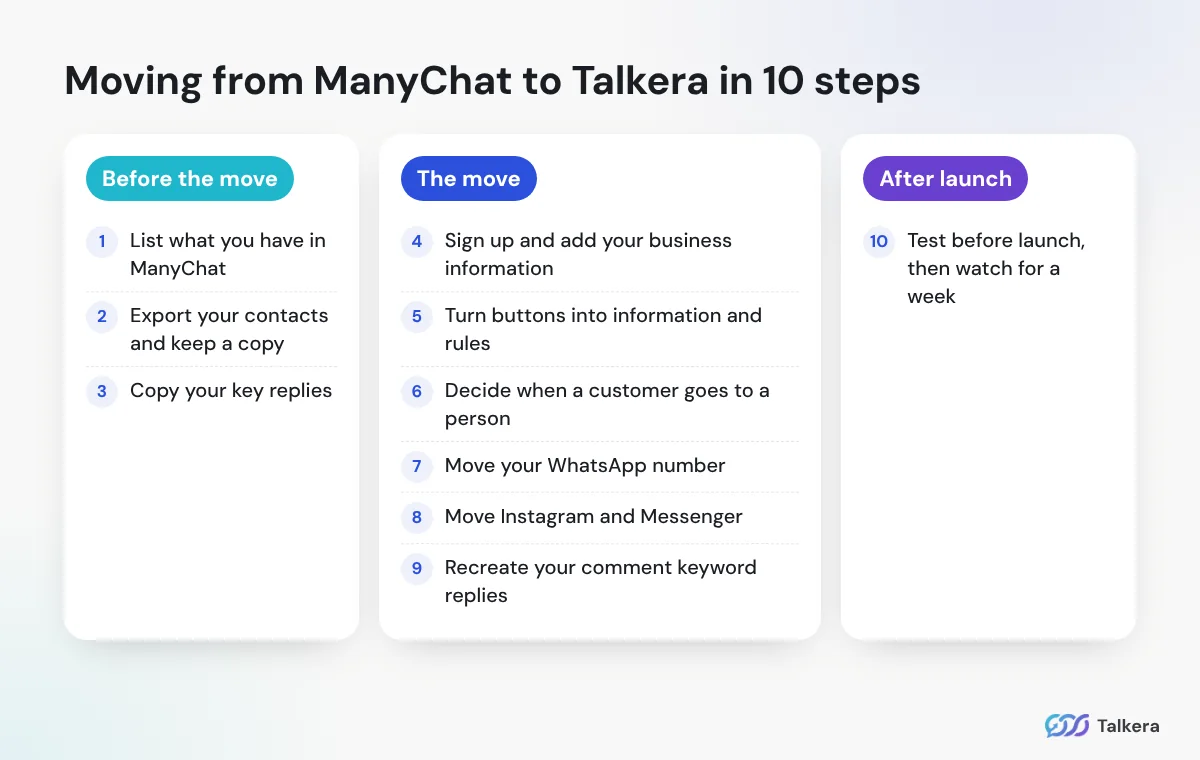
1) List what you have in ManyChat
Write down everything that runs today: connected channels, active flows, comment keywords, scheduled broadcasts, and integrations such as Google Sheets.
- Who: you.
- Time: about an hour.
2) Export your contacts and keep a copy
Export your contacts from ManyChat and keep the file. ManyChat explains the options in its help center: a quick export from the Contacts section (IDs only), or a full export through the Google Sheets integration. Talkera doesn't import lists from a file yet; everyone who messages you after the move is saved in it automatically as a lead.
- Who: you.
- Time: under an hour.
3) Copy your key replies
Open each important flow and copy the text it sends: prices, hours, offers, terms and how to book. This is the material your assistant will answer from.
- Who: you.
- Time: one to two hours, depending on the number of flows.
4) Sign up for Talkera and add your business information
Start the free trial at talkera.net, create your bot and add your information: upload files, add your website link so it reads your pages, or type questions and answers yourself. Your website is re-checked automatically, so when a price or offer changes there, the assistant learns it.
- Who: you, with the Talkera team if you need help.
- Time: one to two hours.
5) Turn buttons into information and rules
Each button flow becomes two things: information the assistant answers from, and a rule when a person needs to step in. For example, a "Book an appointment" flow becomes your hours and booking details, or in-chat booking with Super Talkera.
- Who: you, with the Talkera team.
- Time: one to three hours.
6) Decide when a customer goes to a person
Choose your handover topics: the customer asks for a person, a complaint, a topic you set such as refunds, or when the assistant can't find the answer twice. Also choose the details the assistant collects, such as name and requested service.
- Who: you.
- Time: half an hour.
7) Move your WhatsApp number
The number is first disconnected from ManyChat, then connected to Talkera on Meta's official WhatsApp Business Platform. Our team does the connection with you, and the number stays your business number.
- Who: the Talkera team with you.
- Time: depends on Meta, and may include display-name review and number verification.
8) Move Instagram and Messenger
Disconnect ManyChat from your Facebook page and Instagram account, then connect them to Talkera. Never leave two tools answering the same account, or customers get two replies. Until Meta's approval is complete, the connection is done with our team.
- Who: the Talkera team with you.
- Time: under an hour once a time is agreed.
9) Recreate your comment keyword replies
For every post or Reel that used "comment a word" in ManyChat, create a rule in Talkera: the keyword and its variations, the private message, the file or link, and a follow requirement if you want one. One rule can cover a post on both Facebook and Instagram.
- Who: you.
- Time: about 10 minutes per post.
10) Test before launch, then watch for a week
Write test questions with the answers you expect; Talkera checks them after every change and every night and alerts you if a reply goes wrong. Then send real messages yourself: typed and voice, in different dialects. After launch, review the unanswered questions every day and add their answers.
- Who: you.
- Time: an hour of testing, then 10 minutes a day in the first week.
ManyChat features and their Talkera equivalents
| In ManyChat | In Talkera |
|---|---|
| Flows and buttons | Business information and instructions; the assistant writes the reply itself |
| AI Step (on some plans) | AI answers from your information on every plan |
| Comment automation | Instagram comment keyword replies, with follow-to-unlock and file delivery |
| Live Chat | One inbox for every channel, with saved replies and internal notes |
| Tags and segments | Tags, saved segments and lead stages |
| Broadcasts | Broadcasts and follow-up sequences (Meta templates on WhatsApp) |
| User Input and custom fields | Customer details the assistant collects while answering |
| Growth tools and QR codes | Chat links and QR codes for each campaign or branch |
| Live agent handover | Handover to your team with a clear reason and an alert |
| Integrations (Google Sheets and more) | Events sent to Google Sheets or your own system |
| Voice notes (need an outside integration) | Voice notes understood directly |
Some ManyChat features aren't available in Talkera yet, such as TikTok, SMS and email. If those channels are core to your business, factor that in before moving.
Common migration mistakes
- Switching ManyChat off before testing, leaving hours or days with no replies.
- Copying button text as it is: short button labels aren't enough information. Write full answers, the way you'd reply to a customer.
- Running two tools on one account, so customers get two different replies.
- Forgetting scheduled broadcasts: cancel any scheduled ManyChat broadcast before disconnecting.
- Skipping the unanswered-questions review: the first week matters most for filling gaps.
Frequently asked questions
Will I lose my customers when I move from ManyChat?
No. Customers keep messaging the same WhatsApp number and the same accounts, so they get replies from Talkera instead of ManyChat. Export your contact list from ManyChat before disconnecting and keep it, for reference; everyone who messages you afterwards is saved in Talkera automatically.
Can I keep the same WhatsApp number?
Yes, the number stays your business number. It is disconnected from ManyChat and connected to Talkera on Meta's official WhatsApp Business Platform, with our team doing the connection with you. Timing depends on Meta, so don't disconnect it until your Talkera setup is ready and tested.
Do my ManyChat flows and buttons transfer as they are?
No. Talkera doesn't rely on buttons. The content of your flows (prices, hours, terms) becomes business information the assistant answers from in its own words, and situations that need a person become handover rules. Customers ask in their own way instead of choosing from a menu.
How long does migrating from ManyChat to Talkera take?
Preparing your information and testing usually takes half a day to a working day, depending on the number of flows. Connecting WhatsApp depends on Meta, and Instagram and Messenger are connected with our team. Start the 14-day free trial and prepare everything before disconnecting.
Do I need technical skills to migrate?
No, not for adding information and settings. Connecting WhatsApp is harder for non-technical owners, so the Talkera team does it with you, and setup and training are free for a limited time as a launch offer. You can start on your own from the dashboard, in Arabic or English.